
The final step before I start creating and penetration testing certificates is to set up a centralized logging server to capture and analyze all the action on our hosts. For this I will be using WAZUH which an easy to install and FREE SIEM platform. Wazuh can be is made up of several components, two of the most important being the Dashboard and Indexer.
The Dashboard is a web based UI for viewing logs and alerts generated from hosts with Wazuh “agents” installed on them. The indexer gathers logs and sends them through a series of decoders, which match rules to parse portions of logs out (such as hostname, IP, etc) and then sends tries to match these decoded logs to a series of rules. As you can imagine there is alot of regular expressions going on in the background in WAZUH! It is possible to write custom decoders and rules, however the default decoders for the Windows EVTX style event logs are quite good at parsing through their nested XML structure (in fact it can even convert them to JSON!). This makes writing custom rules much easier as the fields will likely be extracted neatly for us to write regex to match certain conditions.
I installed WAZUH on a fresh Ubuntu 24.04 VM, the documentation has a setup script that can automate the creation of the self signed certificates, pull the necessary packages from the repositories and install the service.
After that its just a matter of downloading the agents to each host. This must be done as Administrator, using the powershell commands listed in the “Deploy New Agent” screen.

Invoke-WebRequest -Uri https://packages.wazuh.com/4.x/windows/wazuh-agent-4.10.1-1.msi -OutFile $env:tmp\wazuh-agent; msiexec.exe /i $env:tmp\wazuh-agent /q WAZUH_MANAGER='10.5.0.5' WAZUH_AGENT_NAME='test' The WAZUH manager is the ip for VM we installed WAZUH on, because all hosts can reach the 10.5.0.0/24 subnet as detailed in the site to site VPN setup post we can simply put this address in as the manager. Also because WAZUH agents communicate over a HTTPS connection on port 1514 even the hosts in the DMZ LAN subnet can connect to this IP ( because the WAN of this router is routed in a site to site connection with 10.5.0.0/24).
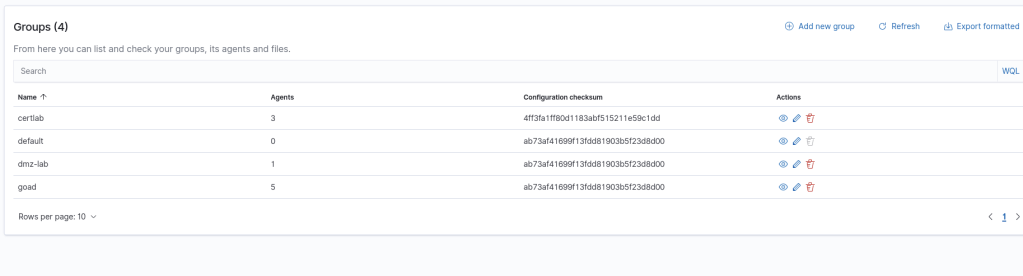
Another feature that can be useful when setting up the agents are the “Agent Groups”. Wazuh settings are configured using files on either the agent, the server, or both. Also, by setting the agent hosts in groups a shared configuration can be added to apply to all the agents in the group.
Setting up agents remotely
To reduce the time to set up agents, especially in the DMZ-internal LAN subnet which cannot be reached without the tunnel, I deployed the agents remotely from the DT01 workstation in the certlab.local (“Distributed Lab”). First, to check that winrm is running on all the machines i used the command:
Invoke-Command -ComputerName dc01,dt01,srv01 -ScriptBlock {Get-Service WinRm}

This command was run from the DT01 machine on the hwah domain (“DMZ lab”). I also gathered the internal IPs with nslookup:
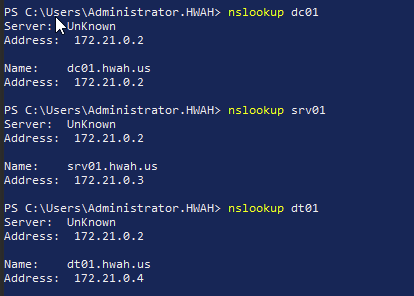
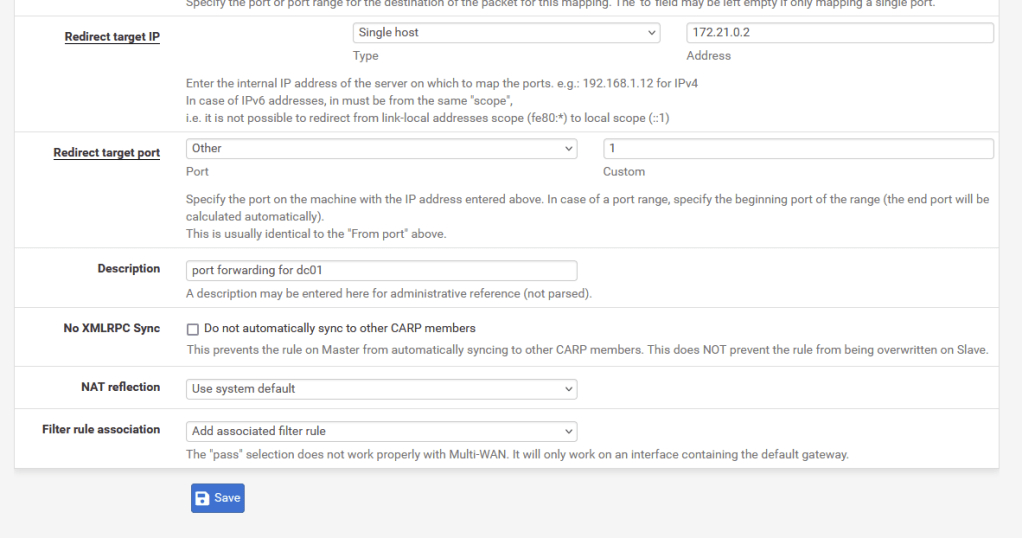
Next, I created Virtual IPs for each box in order to set up one-to-one NAT rules, mapping unique on the WAN of the internal DMZ router to IPs in the LAN. A great feature of PfSense’s Virtual IPs is you can set an “IP Alias” which assigns an arbitrary WAN IP to use for NAT. The screenshot below shows that I used 10.10.100.102 as a Virtual IP intended to map to 172.21.0.2 (DC01.hwah)
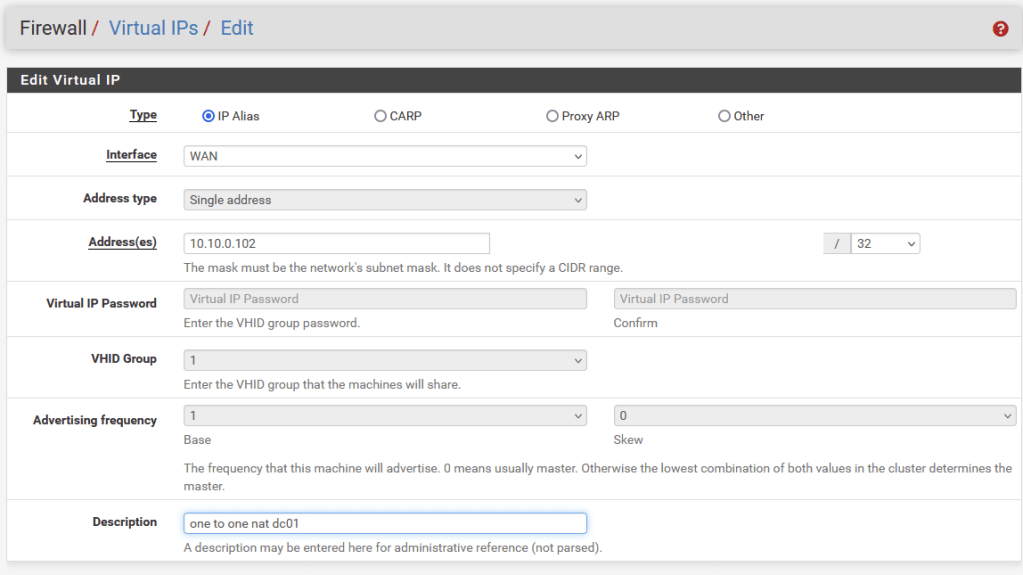
I used the following addressing scheme:
10.10.0.102 -> 172.21.0.2
10.10.0.103 -> 172.21.0.3
10.10.0.104 -> 172.21.0.4

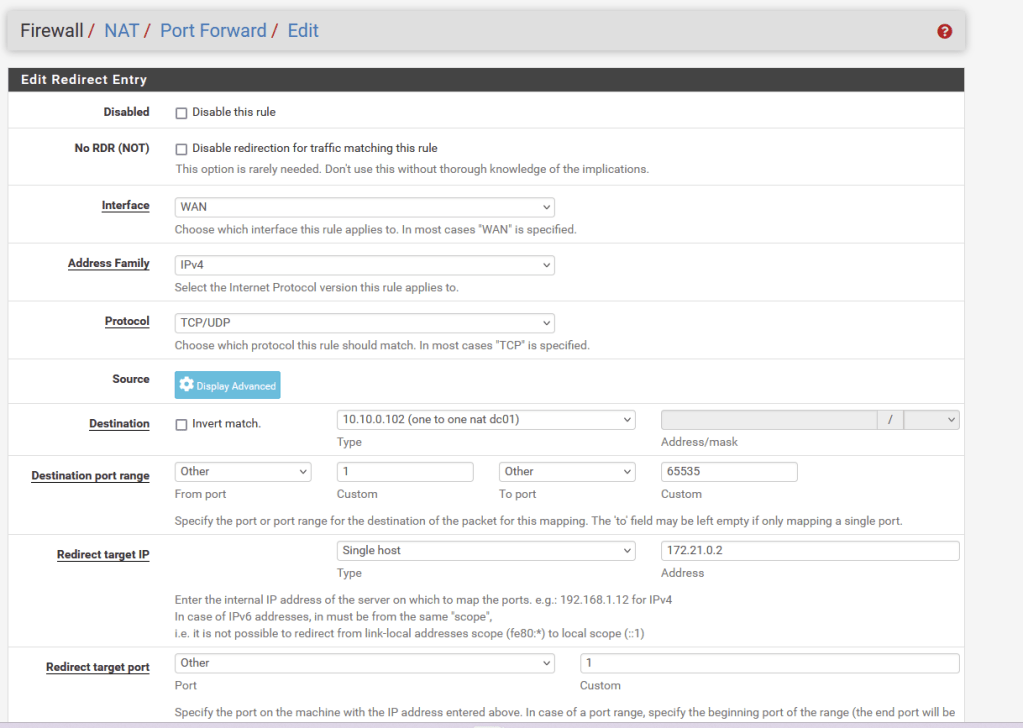
Next, each Virtual Ip will get Nat rules mapping any port on the Virtual IP to the corresponding port on the LAN connected device. We can later restrict this by removing ports or enforcing firewall rules.

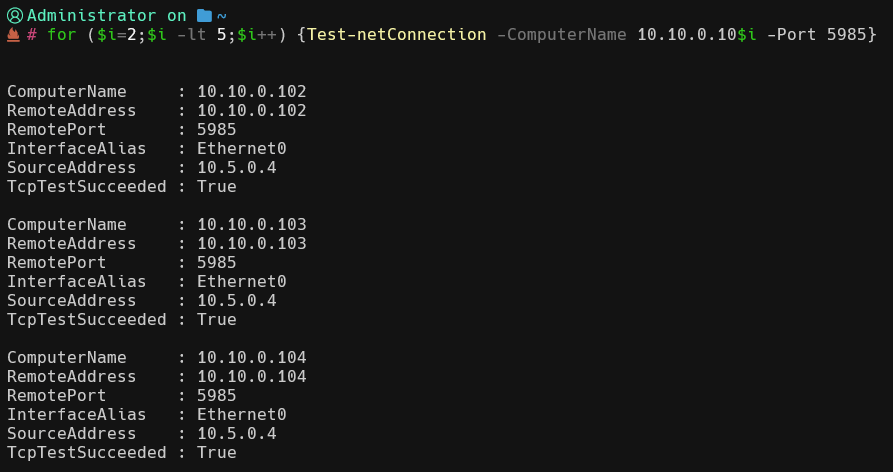
Next, from the DT01.certlab.local machine I tested for connectivity to port 5985 (WinRM).
Then I downloaded a single copy of the wazuh agent for Windows to distribute to the machines.



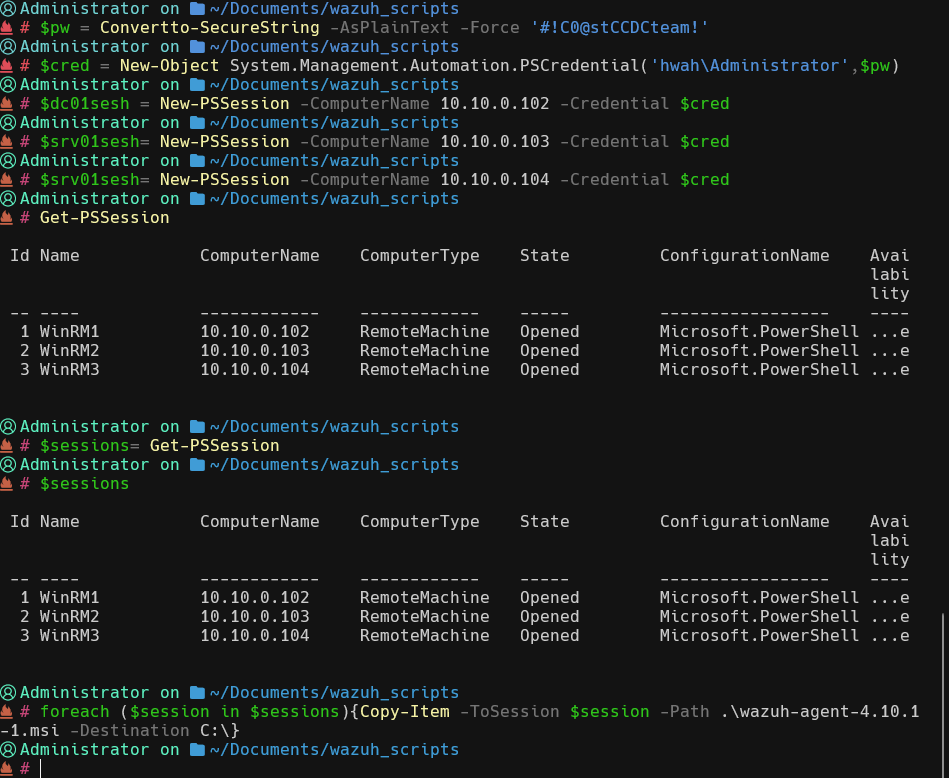
I manually created powershell sessions to each host using the commands:
$pw = ConverTo-SecureString -AsPlainText -Force 'password'
$cred = New-Object System.Management.Automation.PSCredential('domain\Administrator', $pw)
$sessionname = New-PSSession -ComputerName <ip address> -Credential $cred
$sessions = Get-PSSession
Next, to copy the msi file to each host in the C:\ directory I used Copy-Item:
foreach ($session in $sessions){Copy-Item -ToSession $session -Path <path to msi> -Destination C:\}

To automate the installation and starting of each agent I wrote the following Powershell script, saving as a ps1 file
$wazuh = "C:\wazuh-agent-4.10.1-1.msi"
$arguments = @("/i", "`"$wazuh`"", "/qn","WAZUH_MANAGER=10.5.0.5","WAZUH_AGENT_GROUP=dmz-lab","WAZUH_AGENT_NAME=dmz-`"$env:computername`"")

try {
        Start-Service wazuh -ErrorAction Stop
    } catch [Microsoft.PowerShell.Commands.ServiceCommandException]{
        if ($_.FullyQualifiedErrorId -eq 'NoServiceFoundforGivenName'){
            Write-Host "Wazuh was not found"
        } else {
            Write-Host "an unexpected error occoured: $_"
        }
    } catch {
        Write-Host "An unexpected error occoured: $_"
    }
    try {
        $service_up = Get-Service wazuh -ErrorAction Stop

    }catch [Microsoft.PowerShell.Commands.ServiceCommandException]{
        if ($_.FullyQualifiedErrorId -eq 'NoServiceFoundforGivenName'){
            Write-Host "Wazuh was not found"
        } else{
            Write-Host "an unexpected error occoured $_"
        }
    }catch {
        Write-Host "an unexpected error occoured $_"
    }
    if ($service_up.Status -eq "Running"){
        Write-Host "Wazuh is up and running"
    }
    else {
        Write-Host "Wazuh is not running"
    }
The script can be run on each session using a foreach loop as before this time specifying the -Filepath to the script.

Takeaways
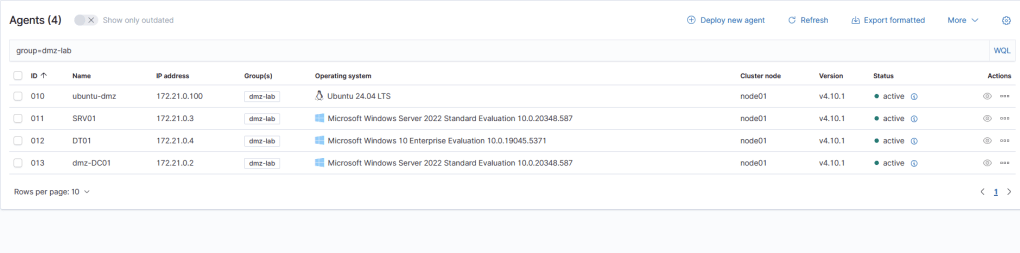
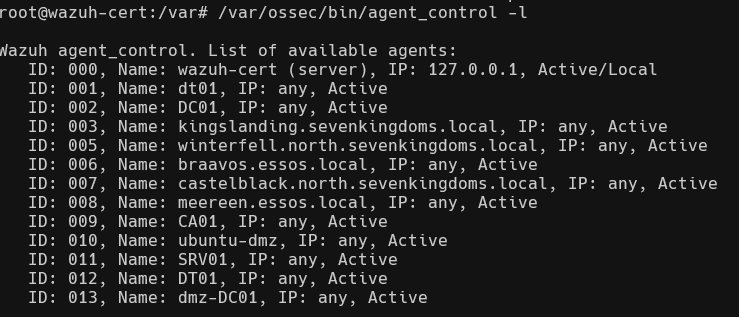
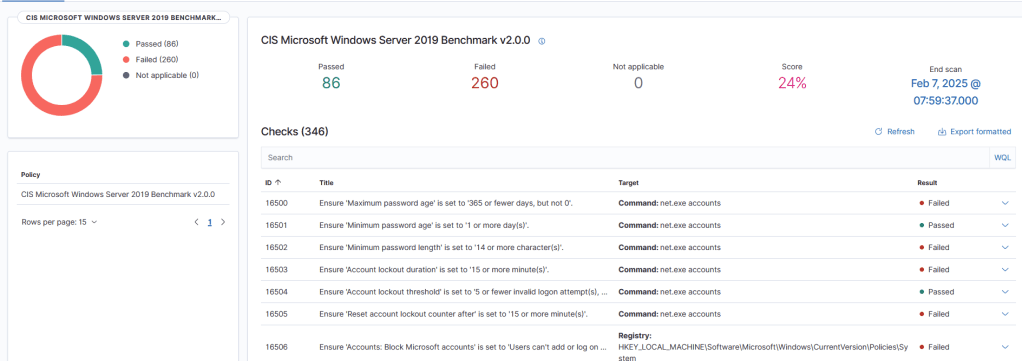
Installing and starting the wazuh agents is a simple process especially given that there is one windows msi executable which creates the ‘wazuhsvc’ service for all Windows versions (back to XP!). Using the WAZUH_AGENT_GROUP variable when deploying the agent allows us the ability to organize our agents lists and apply blanket configurations to all group members. We will revist creating detections when we begin to test ADCS deployment and vulnerability testing in subsequent labs. Out of the box, Wazuh provides decoders for Windows evtx log files and even runs a CIS Benchmark checklist as shown below!
 Hackers With a heart