
Using Remote Desktop from within our domain the connection is typically made using Kerberos and does not give the familiar warning that we are connecting to a computer which is using a self signed certificate.
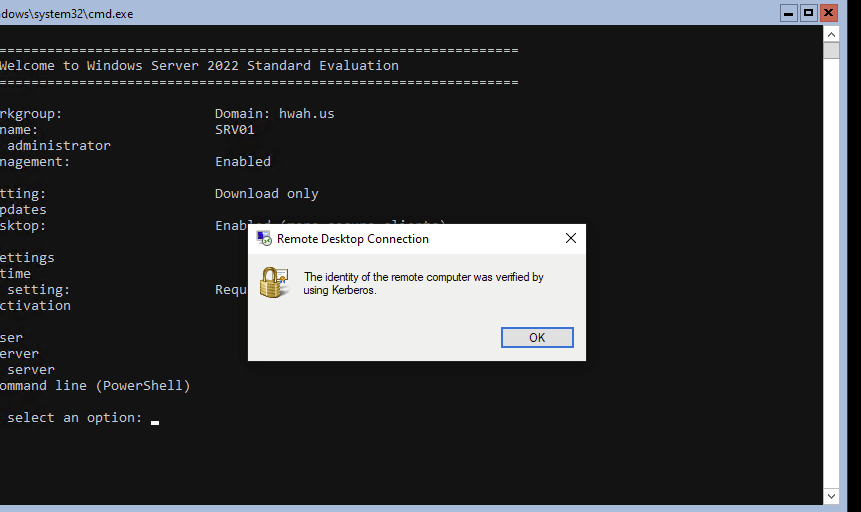
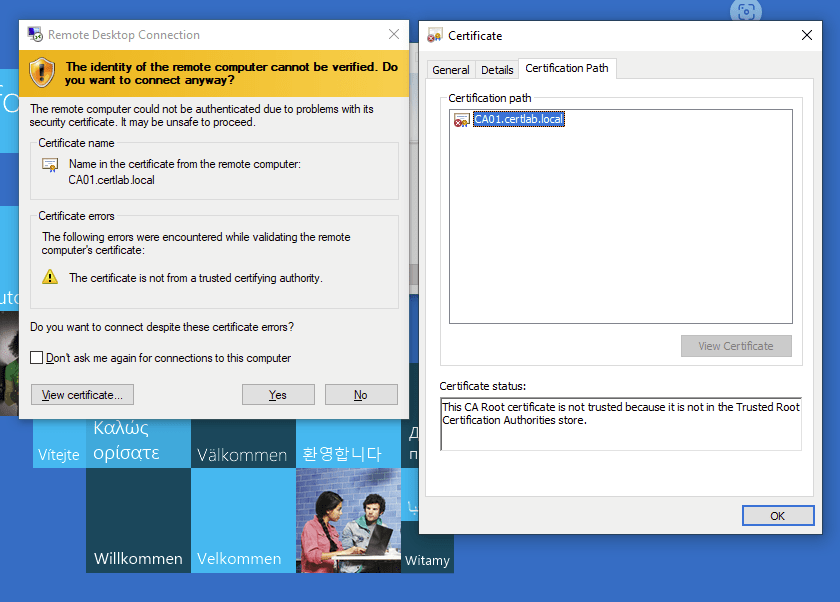
When connecting from outside of the domain, the warning persists and examining the certificate reveals that the certification path begins and ends with the server itself (Self-Signed).
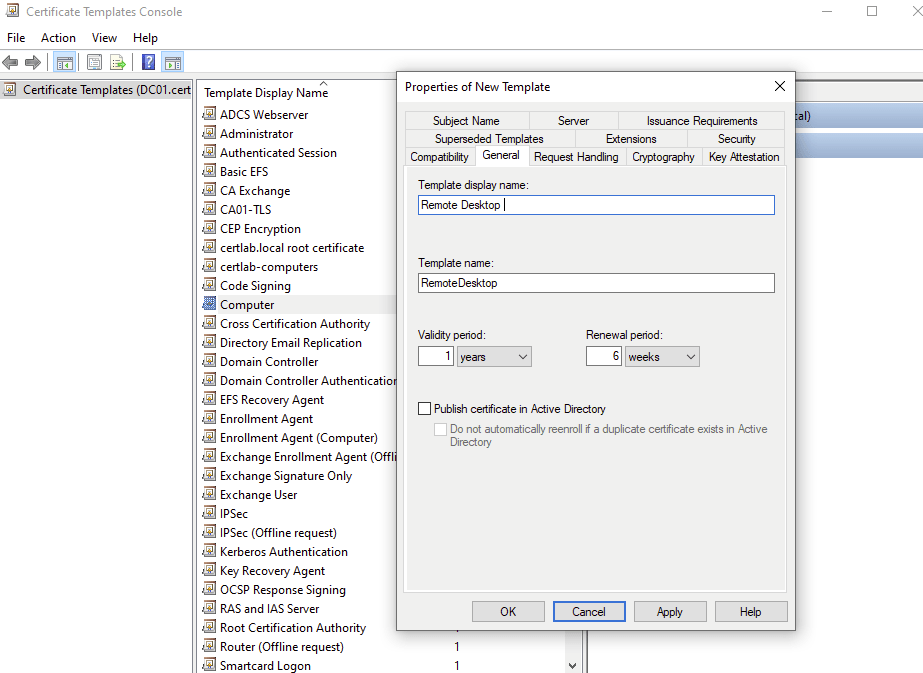
Before addressing issues regarding DNS resolution from the remote domain, I will create a specific template to provide RDP certificates in the “Remote Desktop Computers” OU on the certlab.local domain. The template will be created as a copy of the default “computer” template available in our CA.
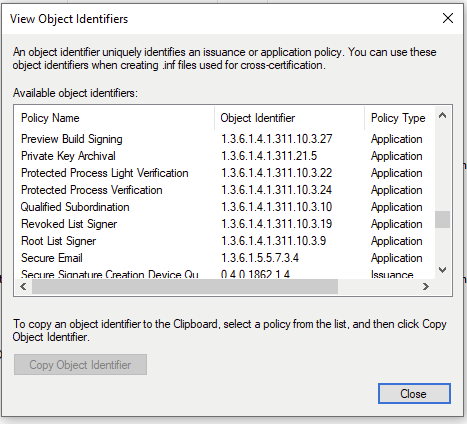
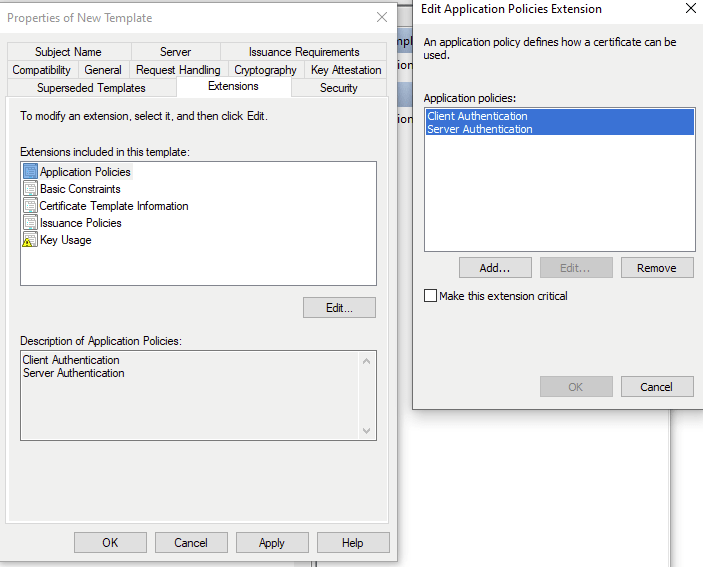
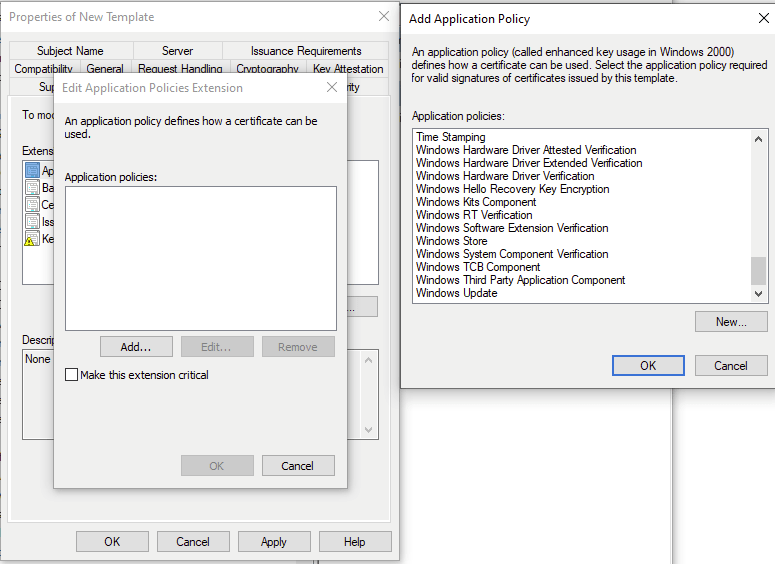
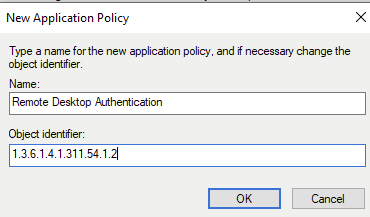
And create a new Policy with the OID shown below.
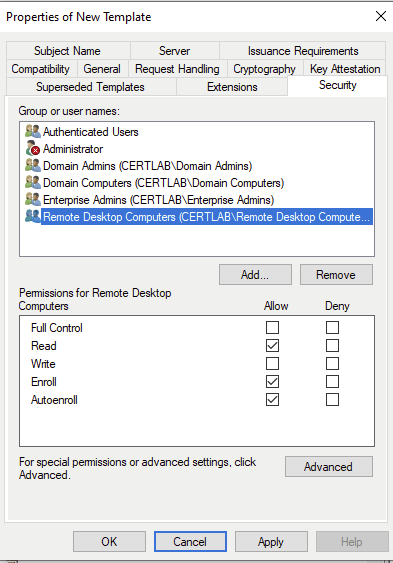
Then, the certificate can be distriubted automatically via our GPO by selecting autoenroll and enroll for manual requests as the machine account.
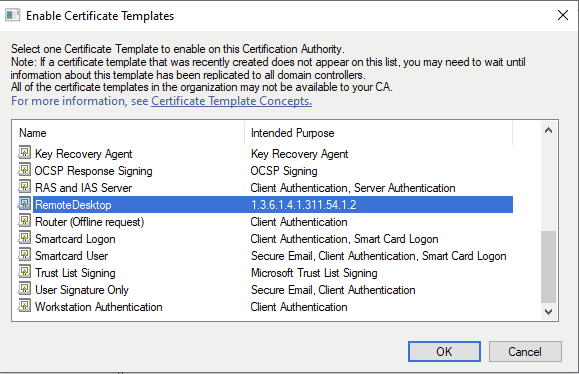
Also there is a specific GPO that we can deploy that points to our new Remote Desktop template, so each machine knows which Certificate to use.
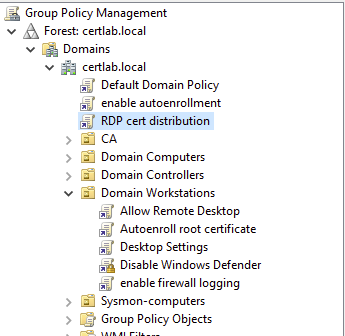
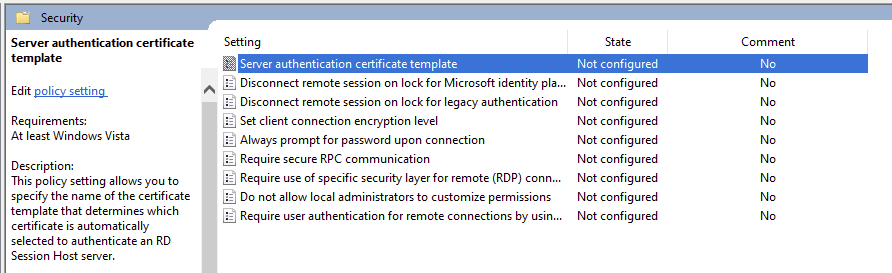
In the Computer Configuration/Policies/Administrative Templates/Windows Components/Remote Desktop Services/ Remote Desktop Session Host /Security /Server Authentication Certificate Template, the template can be set.
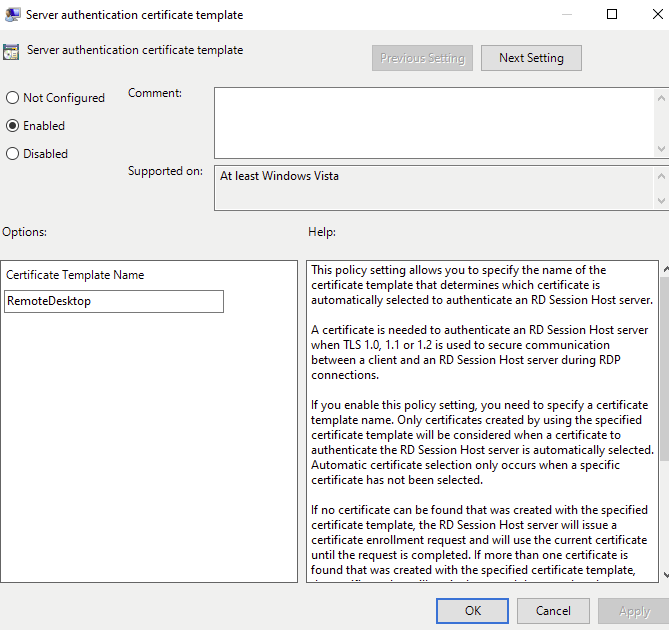
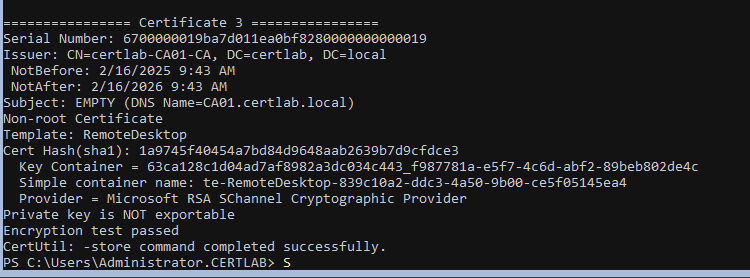
And after a gpoupdate /target:computer /force, the cert is in our LocalMachine store.
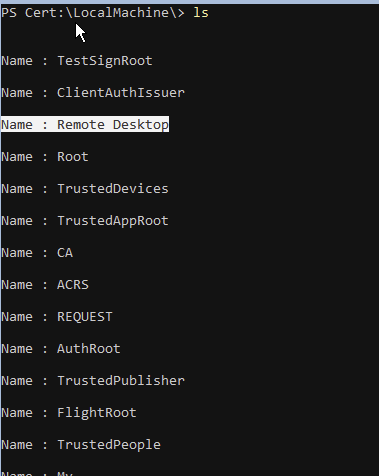
certutil -store My
Next, the Root CA certificate from certlab.local must be installed in the Trusted Root Store on the machine in the hwah.us domain.

As shown below the chain is present, however remote desktop gives errors regarding the hostname in the cert. As we don’t have DNS resolution between the two domains RDP doesn’t quite trust the chain yet.
This can be fixed by adding a conditional forwarder zone in the hwah.us zone with the command:
Add-DNSServerConditionalForwarderZone -Name "certlab.local" -masterservers 10.5.0.2 -PassThruThis will forward all DNS requests for the certlab.local domain through our DNS server in hwah.us to the DC/DNS server in certlab.local.
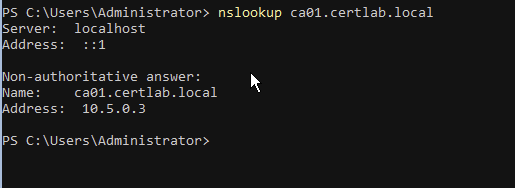
Now the default IIS cert is trusted and gives no errors.

We can now connect to via RDP using the hostname, which removes the mismatched hostname issue. However, I was presented with a new error which indicates that “A revocation check could not be performed for the certificate”
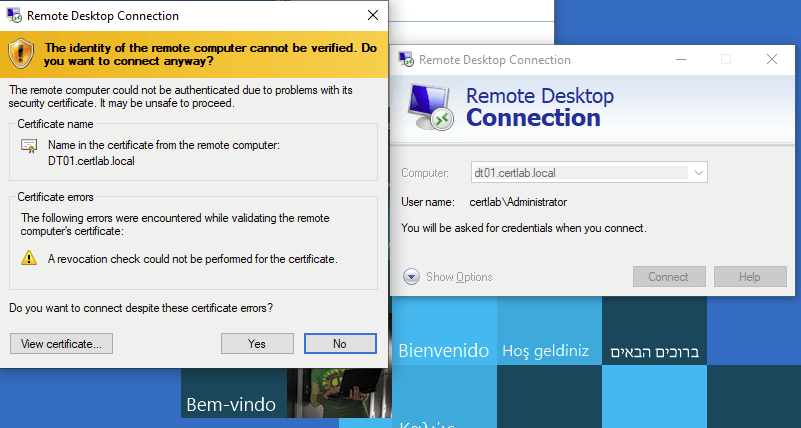
There are three main ways that certificate revocation is checked.
- Certificate Revocation Lists (CRL) which are downloaded by the client to check the serial number/fingerprint against a list of revoked certificates.
- Online Certificate Status Protocol (OCSP) which is a separate service that checks the CRL instead of downloading it.
- OSCP stapling which “staples” a signed record of a recent CRL check to each certificate, saving the need to download or check the CRL.
In ADCS the default method is CRL which is checked using LDAP queries. As we saw in the credentialed enumeration post LDAP queries are typically authenticated and restricted to the local network. Without creating a domain trust in which an authenticated user or service account can make queries cross-domain (which would also require opening more ports on the firewall), a solution is to host the CRL on a website available to both domains.
Publishing CRL records via IIS
First, I created an A record to point crl.certlab.local to our CA.

Then, in IIS Manager I added a new Virtual Directory. This will host the actual CRL files. Creating a directory in the C:\ called CRLs on the CA server, I pointed this new virtual directory to that location and gave it an alias of crl.
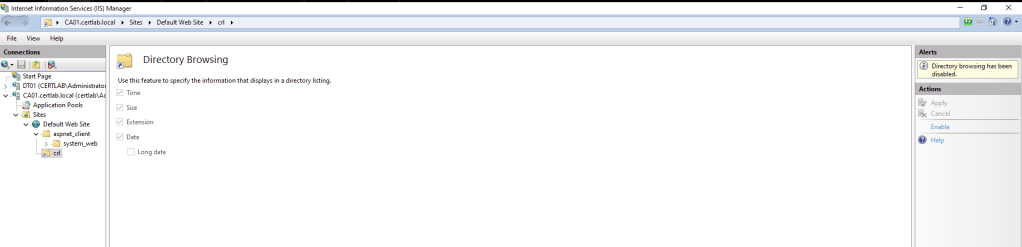
There are a few settings that must be made to allow clients to easily grab the CRL. First the site must by HTTP and allow for directory browsing.
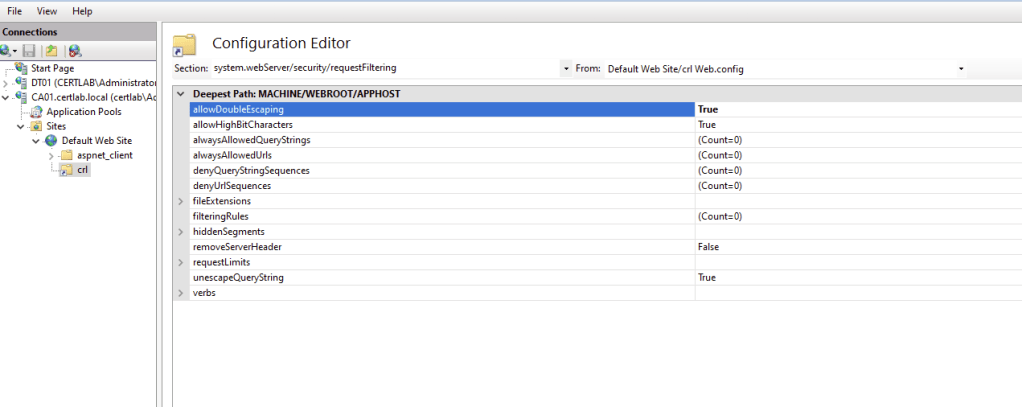
Also, in the virtual directory options select ‘Configuration Editor’ and navigate to system.webServer/security/requestFiltering and select “True” for allowDoubleEscaping. This allows for cross platform compatibility as Windows and Linux handle characters such as \ differently.
Once the directories are set up, the CA must be updated to attach these directions to each certificate. This is achieved in two sections:
- Authority Information Access (AIA), is a roadmap pointing to the Root CA cert and CRL
- CDP, or CRL Distribution Point, are the locations and methods in which the CRL can be accessed
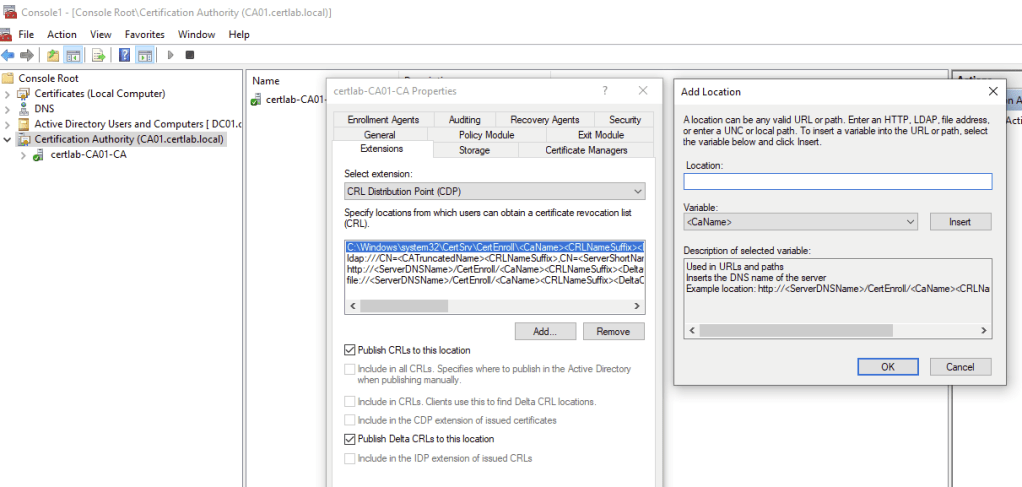
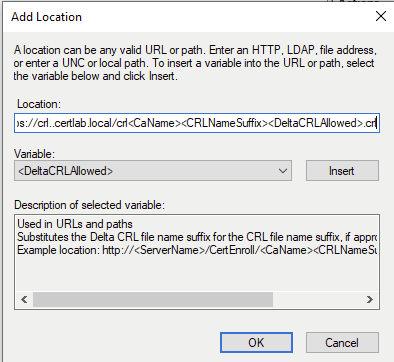
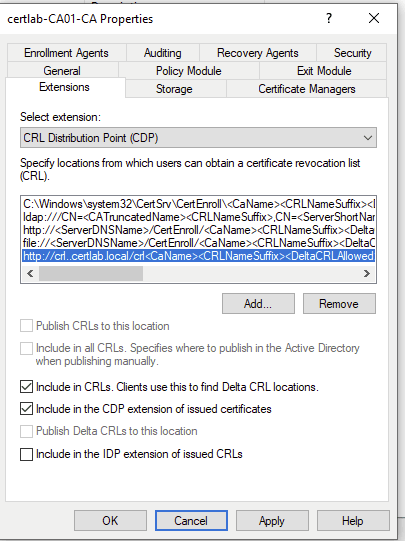
As shown below the location on the the local machine must be set to publish CRLS, and the “Add Location” wizard allows us to set a predictable file format with placeholders for hostname, CRL filenames and the “Delta” file which is a smaller file with the most recent changes.
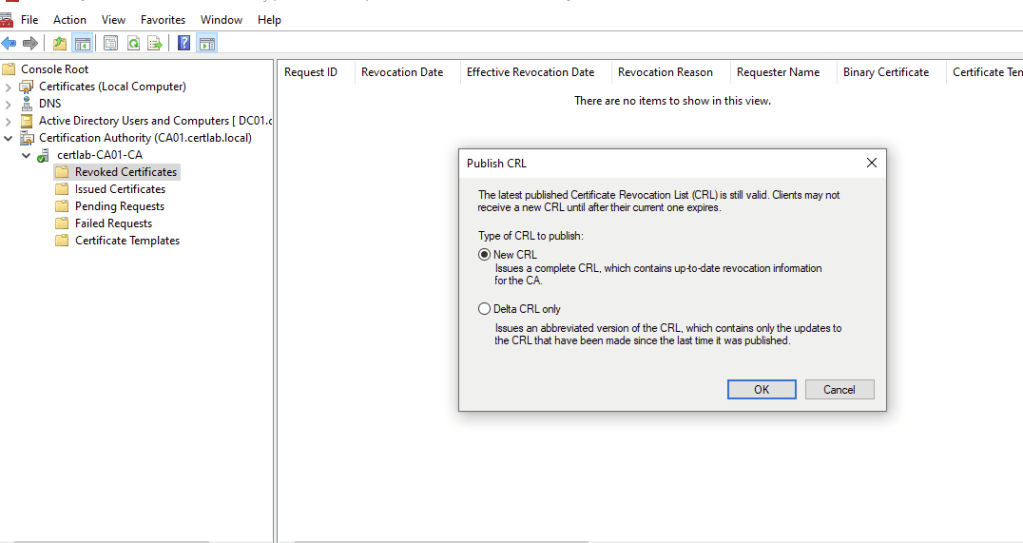
The initial CRL must be manually published, this can be achieved in the Certification Authority mmc snap in or using certutil.
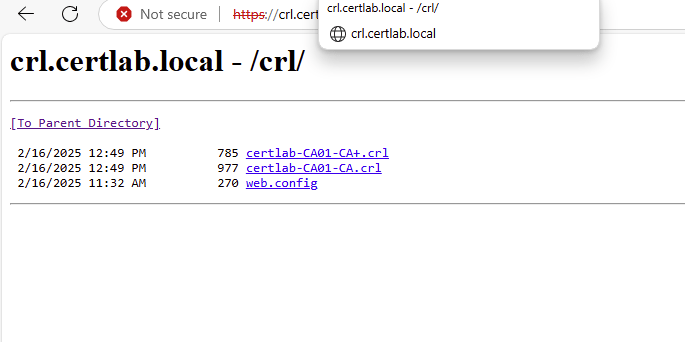
After publishing, we can check accessibility in the browser on both machines.
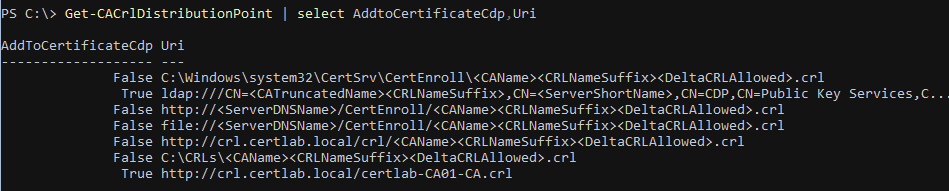
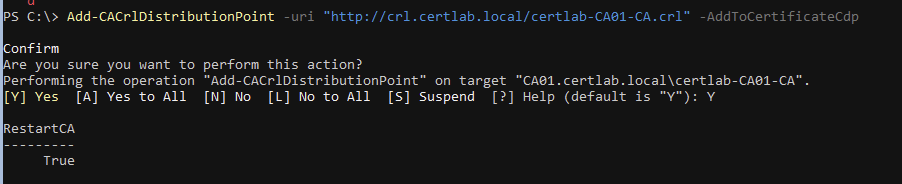
There is a cmdlet in the PSPKI module that allows checking and adding of CRL Distribution Points.
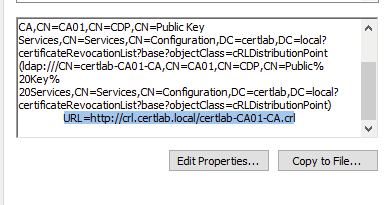
Also, the certificates issued can be checked to include the proper URL, as shown below.
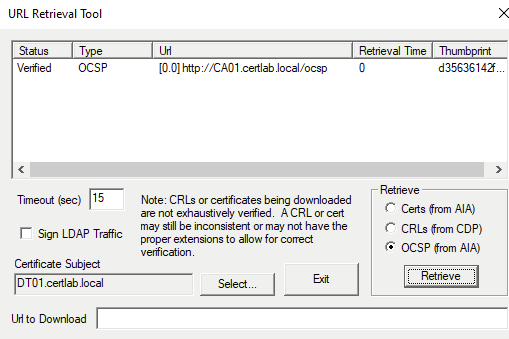
Certutil also contains a great tool for tracing errors in CDP and AIA by running the command:
certutil -f -urlfetch -verify cert.cerA certificate can be checked with each of its URI’s returning output. After I got my URIs in order, this command gave no errors and successfully pulled the CRL and CRL Delta files.
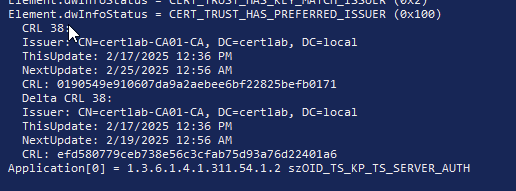
However the RDP error continued?! It took me quite a while to figure out how to fix this as there were many posts online none of which helped (well, other than learning many methods of checking CDP Uris!). While CRL is the older technology and is expected to work in most situations the only way I found was to implement OCSP, which is a more complicated setup.
OCSP setup for victory…Finally!
A OCSP responder can be installed by selecting the option in “Add Features” in Server Manager. I installed this service on the CA itself, however in a distributed environment it can be set up on a separate server.
First, our AIA information must be updated to refer to the OCSP endpoint we will set up. As shown below, I used the default template as the hostname for the site is the DNS name of the CA.
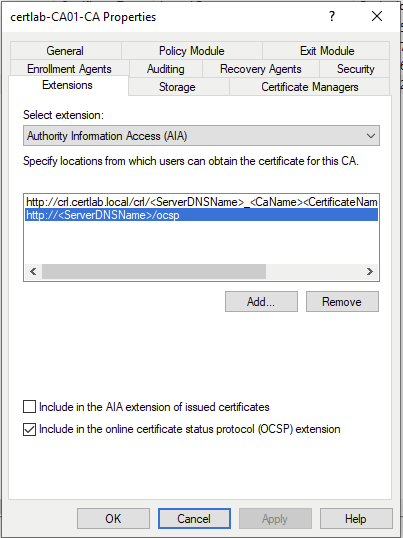
Selecting “include in the online certificate status protocol extension” at the bottom is critical in having this appended the AIA portion of certificates. Similar to the install of CA Web Enrollment, this service automatically creates a Virtual Directory in IIS with the requisite permissions.
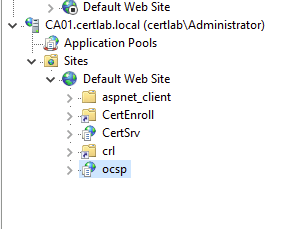
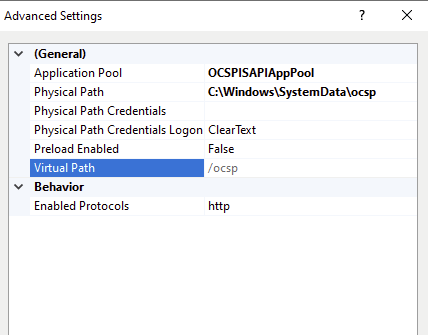
The physical path must me manually set as well, as shown below this is found at C:\Windows\SystemData\ocsp on the CA by default. This directory already has the proper ACL for the application pool account to access.

Next, as OSCP employs signing of CRL checks a template must be set up to issue a certificate. ADCS has a default template called “OCSP Signing” suited for this purpose. This template can be duplicated and used as is however its interesting to note that the lifetime of this cert will be very short (2 days!) which maintains that the CRL checking is signed with a recently verified certificate.
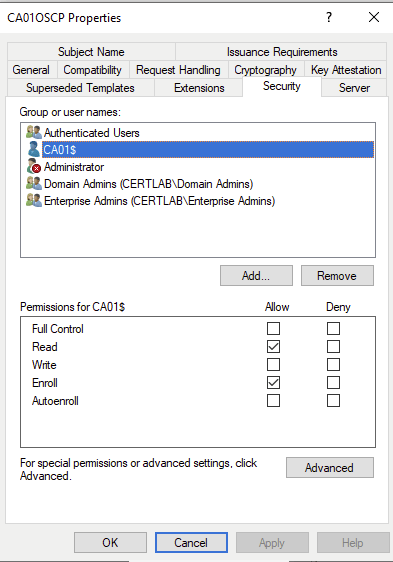
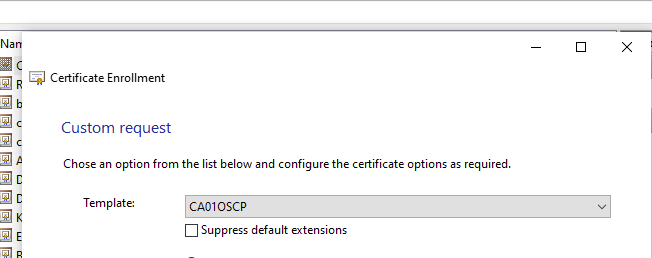
I didn’t publish this certificate in active directory because it will only be used on one machine. Therefore enrolling the CA01 machine in the certificate requires the creation of a Certificate Signing Request (CSR) using the CA01 machine’s private key, uploading the req file (which includes CA01’s public key), downloading the resultant signed certificate and uploading to the LocalMachine Store.
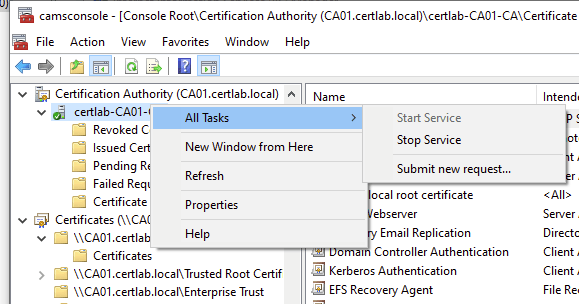
To setup the OCSP I used the “Revocation Configuration” wizard in the Online Responder snap in. Here I selected the CA01-certlab-CA Root CA certificate to instruct the responder to monitor the certlab.local domain.
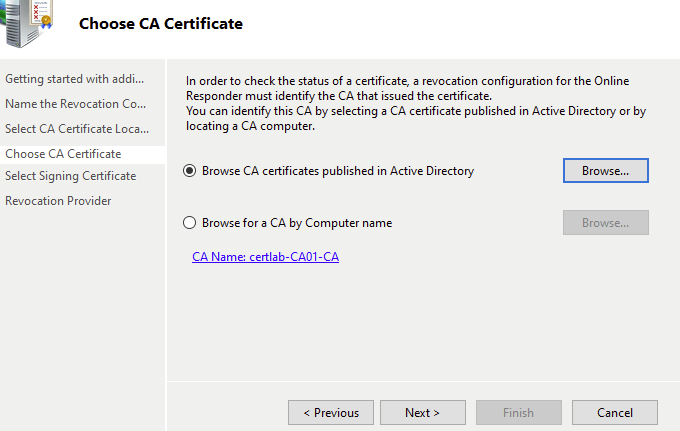
The custom OSCP Signing template I created was automatically acknowledged by the wizard.
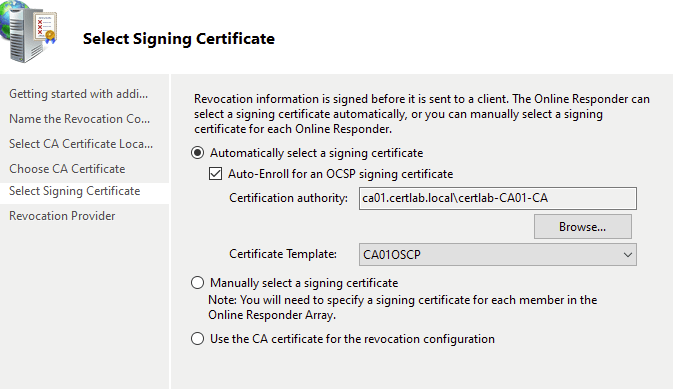
The “Revocation Provider” indicates how the responder will access and check the CRL, as shown below the URI for the CRL list is found automatically.
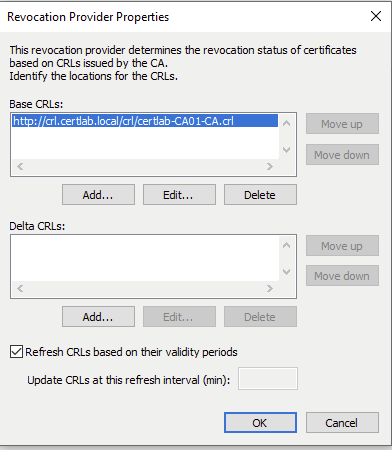
We are presented with a big green checkmark indicating that the responder is up and running.
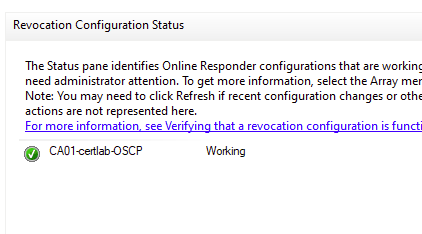
For piece of mind, I requested a new certificate and tested the AIA, CRL, and OCSP paths with certutil.
Finally, (and I learned this the hard way) it helps to supply the Remote Desktop Certificate explicitly especially because I had deleted and repopulated the certificate many times during testing. An excellent cmdlet for this is PSCertificationEnrollment which simplifies many the process.
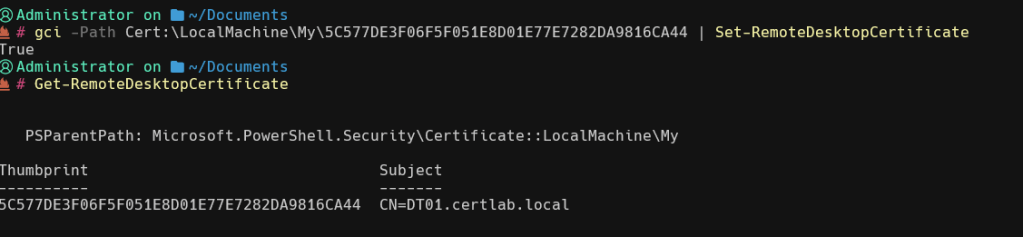
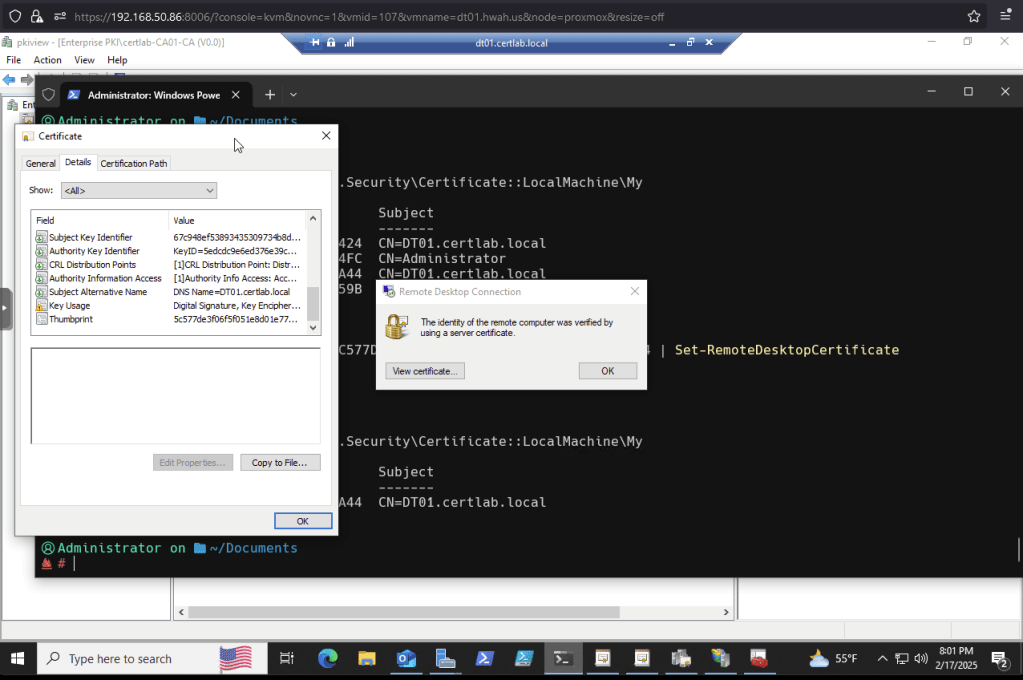
This ensures that the latest cert is populated when the client connects. As shown below, I finally achieved that sweet,sweet padlock and no warnings!
Takeaways
Setting up available and redundant measures for checking certificate revocation is an important component to overall CA security and health. It may take some trial and error to figure out which method works best for the application but learning how CRL/CDP, AIA and OCSP work together was interesting.
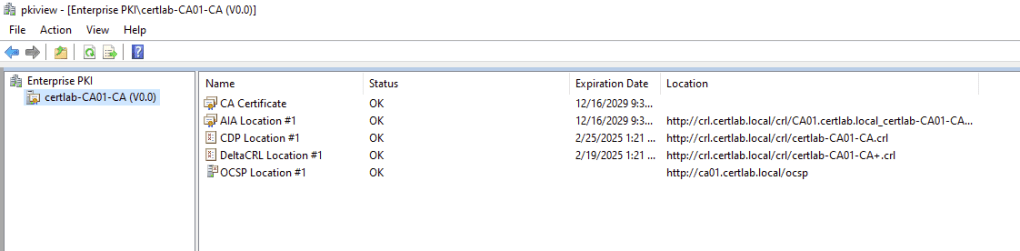
By setting up all three we can best be prepared for any situation. Also, there are many configurations that can be made to offer redundancy and even shorter times between CRL checks which can help respond to high traffic and security incidents involving certificates.
 Hackers With a heart